Monday, October 03, 2011

Launch VirtualBox VMs from Windows 7 Jumplist

VirtualBox is one of the most popular Type 2 hypervisors and natively does not support Windows 7 Jumplist. If you install and run many virtual machines on VirtualBox on your Windows 7 machine you will like VBoxLaunch which is a tiny script around 900 KB in size written by Nic Bedford to add Jumplist functionality (actually a workaround) to VirtualBox.

We just have to download the free script and unzip VBoxLaunch.exe to VirtualBox install directory usually C:\Programs Files\Oracle\VirtualBox

You may be asked to provide administrator permission to copy the exe to the folder

image

Click on continue to finish the copy

Now right click on the VBoxLaunch.exe and select Pin to Taskbar and Start Menu

vboxlauncher-2

Now Right Clicking the VBoxLaunch icon in the Taskbar will pull up the jumplist of all your VMs inside VirtualBox.

vboxlauncher-1

If you have pinned VBoxLaunch to Start Menu you can access VMs and launch from there.

vboxlauncher-3

This works on both 32 bit and 64 bit versions of Windows 7. VBoxLauncher is a very handy and must have tool for those running VirtualBox on Windows 7

Note

Sunday, October 02, 2011

Undersea (Submarine) Cable Map

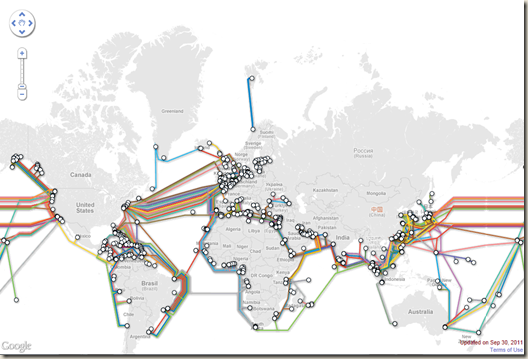
All of us know that undersea cables connecting different countries across the globe form the backbone that carry more than 90% of our voice and data traffic (Internet). Ever wondered how many such cables have been laid, which countries are connected and who owns those cables.

TeleGeopgraphy a research and consulting firm since 1989 based on their Global Bandwidth Research has released an interactive world map with nearly 200 active and planned submarine cables and their landing stations.

Clicking on any cable on the map provides data like its name, length, owners, website if any, year (RFS – Ready For Service) and landing points. Selecting a landing point gives a list of all cables landing at that station.

image

List of undersea cables that land in India
1. The Bharat Lanka Cable System
2. Europe India Gateway (EIG)
3. FLAG Europe-Asia (FEA)
4. FLAG FALCON
5. i2i Cable Network (i2icn)
6. IMEWE
7. SAFE
8. SEACOM/Tata TGN-Eurasia
9. Gulf Bridge International Cable System (GBICS)
10. SeaMeWe-3
11. SeaMeWe-4
12. Tata TGN-Tata Indicom
13. WARF Submarine Cable


Reference:

Saturday, July 02, 2011

NoReplyAll Addin for Outlook

If you are an Outlook user and looking for a feature to disable reply all option the NoReplyAll plugin from Microsoft Research is for the rescue. It is a small plugin, when installed add two new buttons No Reply All and No Forward to the new message UI as shown below

image

The buttons are self explanatory and use them whenever required for your email.

Download NoReplyAll Outlook Add-In From here which is just 300 KB in size. It is a zip file and when extracted will have 4 files including setup.exe and 1 folder in it.

image

Double click setup.exe to start the installation

No ReplyAll-2

It would ask for confirmation to install the tool and once confirmed it would continue with the installation

No ReplyAll-1 - Copy

When the installation is complete just click close to on the popup.

No ReplyAll-3

Now NoReplyAll Addin for your Outlook is ready for use.

Note: This plugin works only with mailing systems that use Microsoft Exchange Server as the backend and will not work for users using web based email like gmail.

In short it is a very handy tool for a Outlook 2007 and 2010 User.

Click here for more info here on the Microsoft Research site.

Thursday, June 23, 2011

How Fiber Optic Cables Work

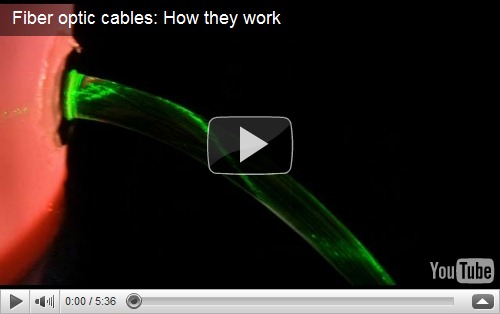
In this 5 min 30 Sec video Mr. Bill Hammack (Engineerguy) from Department of Chemical & Biomolecular Engineering, University of Illinois – Urbana shows how a fiber optic cable works using a bucket of Propylene glycol and a laser pointer.


Source: http://www.engineerguy.com/videos.htm

Click here for more about Fibre Optic Cable

Click here to know more about Propylene glycol

More on Pulse Code Modulation here

Saturday, May 14, 2011

Silent install Startup Script for Sophos Antivirus

Sophos Antivirus is one of the best enterprise grade antivirus for Windows, MAC and Linux operating environments that has features like application control, device control, NAC etc and has been one of my favourite Antivirus programs. AV agents can only be installed on the client machines from the management console of Sophos or manually using a Sophos ID and password. By default there is no automated way to install the agent when a machine is added in an Active Directory Environment.

Below code helps to create a batch file for example InstallSophos.bat using a text editor and can be added to a Startup script GPO to install Sophos Antivirus on newly added machines in a domain.

This batch file first checks if Sophos is already installed on a machine for both 32 bit and 64
bit Windows operating systems and installs the AV Agent in the background if not found.

Add Sophos server FQDN or IP address, User ID and respective password inplace of SophosServerNameHere, Domain\UserNameHere and PasswordHere in the below script.

We can even remove all the lines which start with REM as they are just comments which would make this a 5 line script :)